Graphical User Interface
The Lettuce user interface (UI) lets you use the same Lettuce functionality as the API, but interactively.
Usage
Configure your environment
Some of the options for Lettuce can be configured through the UI.
Others, like database credentials are still configured through the environment.
If you have changes to the defaults that work for the quickstart, then copy your .env file over.
Navigate to the /lettuce-ui directory
Run the UI with uv
uv run lettuce-uiThis will start the user interface in your browser
Configure your UI
To use the UI, some set-up is required.
First, you have to choose which search types to enable. There’s a sidebar in the app that allows you to enable different pipelines.
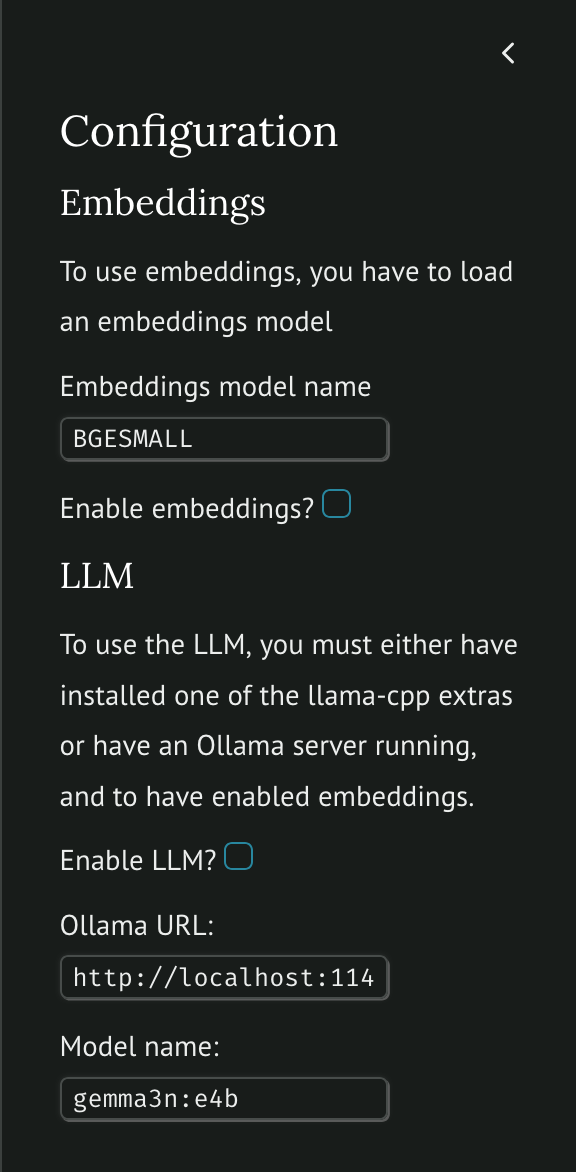
This lets you choose:
- One of the pre-configured embeddings models by its short name
- Whether the embeddings code is enabled
- Whether the LLM is enabled
- An Ollama URL if your environment is configured to use Ollama (default)
- The model name to request from Ollama
Upload a CSV file
The UI assumes you have a CSV file with your source terms held in a column.
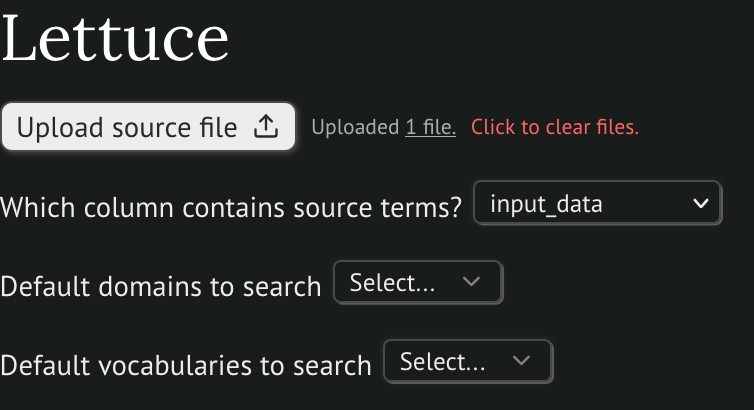
There’s a file upload button which will open a file picker, which you can use to upload your CSV.
Then, you can choose which column of the CSV contains source terms. Once you’ve selected this, the UI automatically runs keyword search on your source terms to suggest concepts.
(Optional) Select default domains and vocabularies
If you have pre-defined domains and vocabularies that you want to map all or most of your source terms to, you can set defaults in this top menu. You can choose nothing to search all domains and vocabularies by default.
Get suggestions
Once you have chosen a column of your CSV for your source terms, a table below the options will populate.
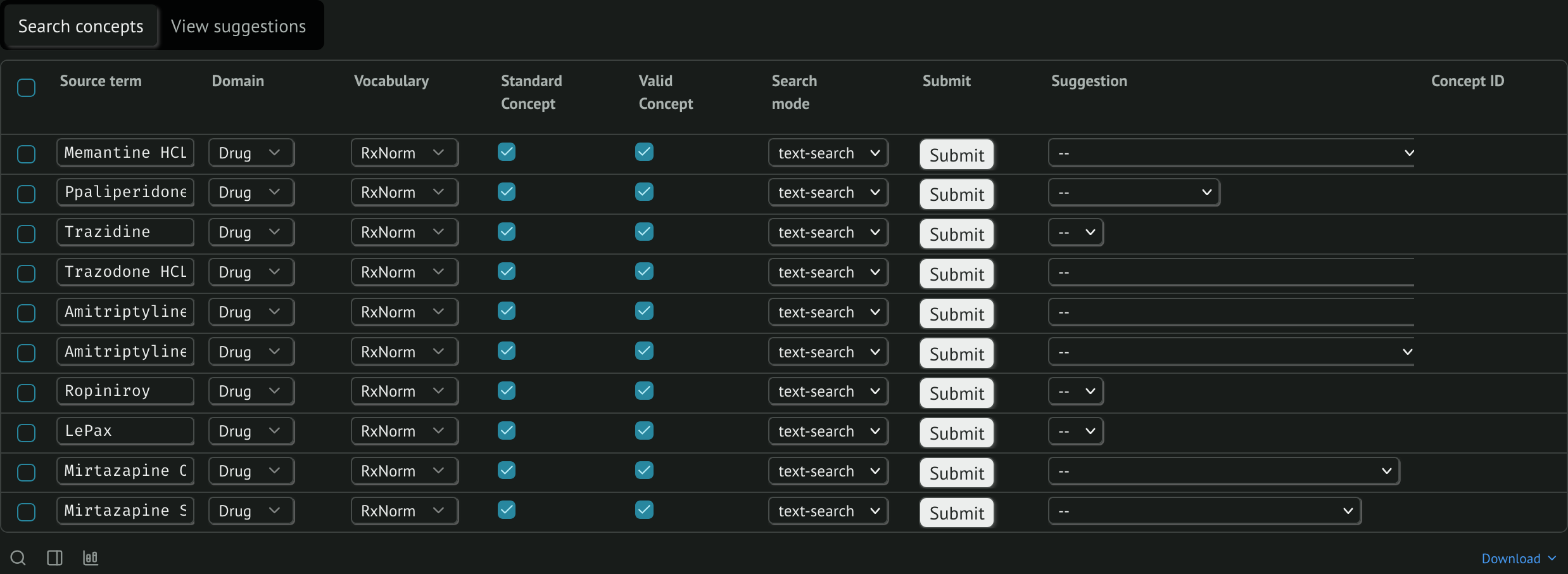
Perhaps you’re lucky and you get exactly what you want for each source term from the initial search. In most cases, you’ll want to change how Lettuce searches for concepts. For each source term you have options
Source term: An editable term to use for search. If you have an obvious typo in your source term, you can simply search for something else
Domain: A multi-select box for domains to search.
Vocabulary: A multi-select box for vocabularies to search.
Standard concept: A checkbox to only look for standard concepts
Valid concept: A checkbox to only look for concepts that haven’t been invalidated
Search mode: A select box to choose which kind of search to use
Suggestion: You may get multiple options to look at. This box is only really meant for you to check your suggestions quickly so you can see if you want to change your search parameters
Concept ID: If you have selected a suggestion, this shows you a link to Athena for this concept
Choose suggestions
Above the search table, there’s a tab selector. If you click “View suggestions”, you are shown more details about the concepts suggested.
Save selections

Once you’ve chosen suggestions you’re happy with, you can save them. You choose a filename and click save to create a CSV file with the following fields
Search parameters
- source_term
- search_term
- domains
- vocabs
- search_standard_concept
- valid_concept
- search_mode
Concept parameters
- concept_id
- concept_name
- domain_id
- vocabulary_id
- standard_concept
- score
Modifying the app
The person who made this is not a front-end person. The UI is built with marimo. If you want to change it, the easiest way is
uv run marimo edit src/ui.pyYou can edit it like a notebook, then switch to an app mode to view it as an app.